A firewall configuration can tell you a lot about a business. Its networks, remote connections, suppliers and the exceptions added to keep things working. It can also contain passwords, keys and other information you would never want to drop into an unfamiliar website.
That made the first decision about our new tool fairly straightforward: the configuration should stay on your device.
We’ve built a free FortiGate configuration reviewer that reads an export in your browser and highlights settings worth a closer look. There is no configuration upload, no account to create and no AI service receiving your file. You can try it with a made-up example before choosing anything from your own network.
What can it pick up?
The reviewer looks at a defined set of settings, including broad allow rules, traffic logging, security-profile inspection, management access, administrator MFA and trusted hosts, and selected IPsec VPN settings.
For example, it can flag an enabled accept policy whose source and destination include the built-in “all” object and whose service includes “ALL”. That gives you a sensible question to take to the person who owns the rule: does this still need to be so broad?
It can also highlight HTTP or Telnet management access, or an interface labelled as WAN that permits a management protocol. Those deserve attention, but the configuration alone cannot prove that someone on the internet can reach them. Other controls may restrict access.
Each finding includes the evidence, why it may matter and what to review next. References are anonymous by default. Before the review, you can choose to include policy IDs, object names and VDOM names to help your engineer find the setting. Those identifiers stay in your browser; keep any report that includes them private. Text exports also provide line numbers.
A finding needs context
The results now include a configuration risk score out of 100. Higher scores mean more observed settings need attention. It is a Next2IT review indicator; it does not say how likely a breach is or how “secure” the firewall is.
You can open the breakdown and see every point. Each finding type starts at 25 points for high priority, 10 for medium or 3 for low. Additional occurrences add one point each, capped at five extra points per type. The total is capped at 100. Repeated rules therefore matter without dominating the result simply because a configuration is large.
If settings are missing, or a core section was not supplied, the score is labelled provisional. If there are no scored findings but information is missing, the tool withholds the score. Unknown settings add no points, and missing information never counts as a pass. Leaving a finding out of the report does not lower the score.
A rule might serve a specialist application. An external identity provider might enforce MFA even when a local setting appears disabled. A VPN might allow an older proposal without actually negotiating it. Those are things an engineer needs to establish before changing a working system.
Default settings are another trap. Standard FortiGate exports can omit them. If a value is missing, the reviewer says it needs checking; it does not turn that omission into proof that a protection is enabled or disabled. Fortinet’s backup documentation explains the distinction between ordinary and full configuration exports.
The tool does not simulate policy order, expand address groups, read live traffic, check firmware vulnerabilities or test external reachability. A review with no matching findings is still only a review against those particular checks.
Export a separate copy for review
Start with a configuration you are authorised to examine, and keep your normal recovery backup protected.
The wizard walks you through making a separate password-masked copy. Fortinet documents password masking from FortiOS 7.2.1. In the web interface, the usual route is the administrator menu, then Configuration → Backup. Choose the local PC destination, select YAML and enable Password mask. Check the guide for your release if the options differ.
Fortinet replaces supported secrets with a placeholder such as
FortinetPasswordMask. The wizard also explains the obfuscated CLI export
options for administrators who want a text export or a full configuration
with default values included. Both routes link to
Fortinet’s own masking guidance.
A masked file is a review copy, not a recovery backup. Do not restore it to your firewall: placeholder values cannot recreate the original secrets.
Masking also does not make the whole file public information. Addresses, names and network structure can remain. Keep the export private even after password masking is enabled.
What happens when you choose a file?
Your browser reads it locally. A separate browser worker parses the supported configuration sections and excludes detected secret fields before producing the findings. Secret values are never displayed.
If potentially unmasked secrets are detected, you see a count and a clear explanation. We recommend making a fresh masked export. The tool does not alter the original, and it does not certify that an export is free of every possible secret.
Analytics and session recording are disabled on the reviewer page. It blocks background network connections and third-party scripts, and the tool does not save your review to cookies, browser storage or a database. The website and its code still download normally, so the hosting provider receives that page request. Your configuration is not part of it.
Use a trusted browser on a device you control. “Clear & start again” releases the working review, but your original export and any report you choose to download remain on your device.
Leave with something useful
The final step lets you select findings, preview the content and choose a PDF report or a three-sheet Excel workbook.
The PDF brings together the score, its full breakdown, the evidence for each selected finding and practical next steps. Unanswered checks are grouped with instructions on how to complete them. It supports up to 250 selected findings; Excel keeps the full action list and every pending location.
In the workbook, Summary groups the observations and next steps; Findings gives your engineer a filterable action list with Owner, Status and Notes columns. Checks pending retains the entries where the export omitted a setting. Those unknowns are kept out of the finding counts. Updating workbook statuses tracks progress; rerun the configuration after changes to calculate a new score.
The default download uses anonymous references. If you enabled identifiers before analysis, you can include them in either format or switch back to an anonymous copy. Credentials and raw configuration are excluded in either case. An anonymous entry number is a position in the export, not a policy ID.
Downloading the report sends nothing to Next2IT. If you want to discuss it with us, the Next2IT help section explains how we can validate the findings, agree priorities and plan changes around your business. Book a conversation or call the team when you are ready. Your score, findings and configuration are not sent with those links; you decide what to share separately.
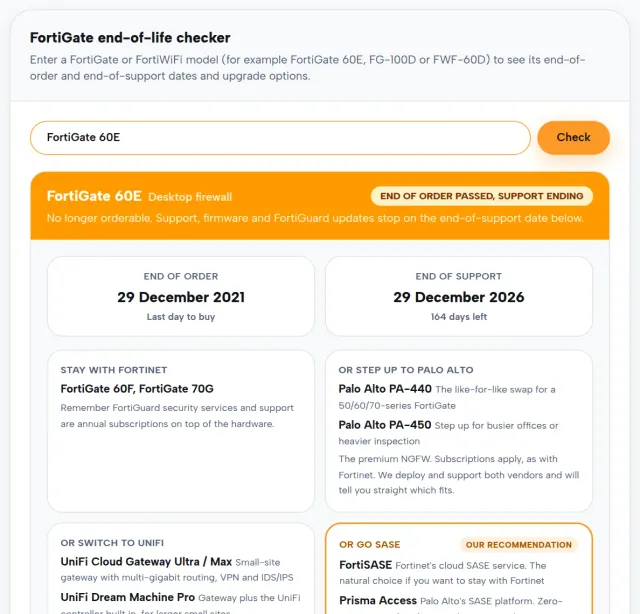
You can pair the review with our outbound security test for a browser-based look at outbound connectivity, and the FortiGate end-of-life checker for hardware support dates. Each answers a different question; none replaces a wider assessment of the network.
Try the FortiGate configuration reviewer, or speak to our Network Operations Centre team if you would like help turning the findings into an agreed plan. Start with the settings, add the business context, and make changes with the right people involved.